Connect HelpDesk to Outlook mailbox
Connect Outlook mailbox
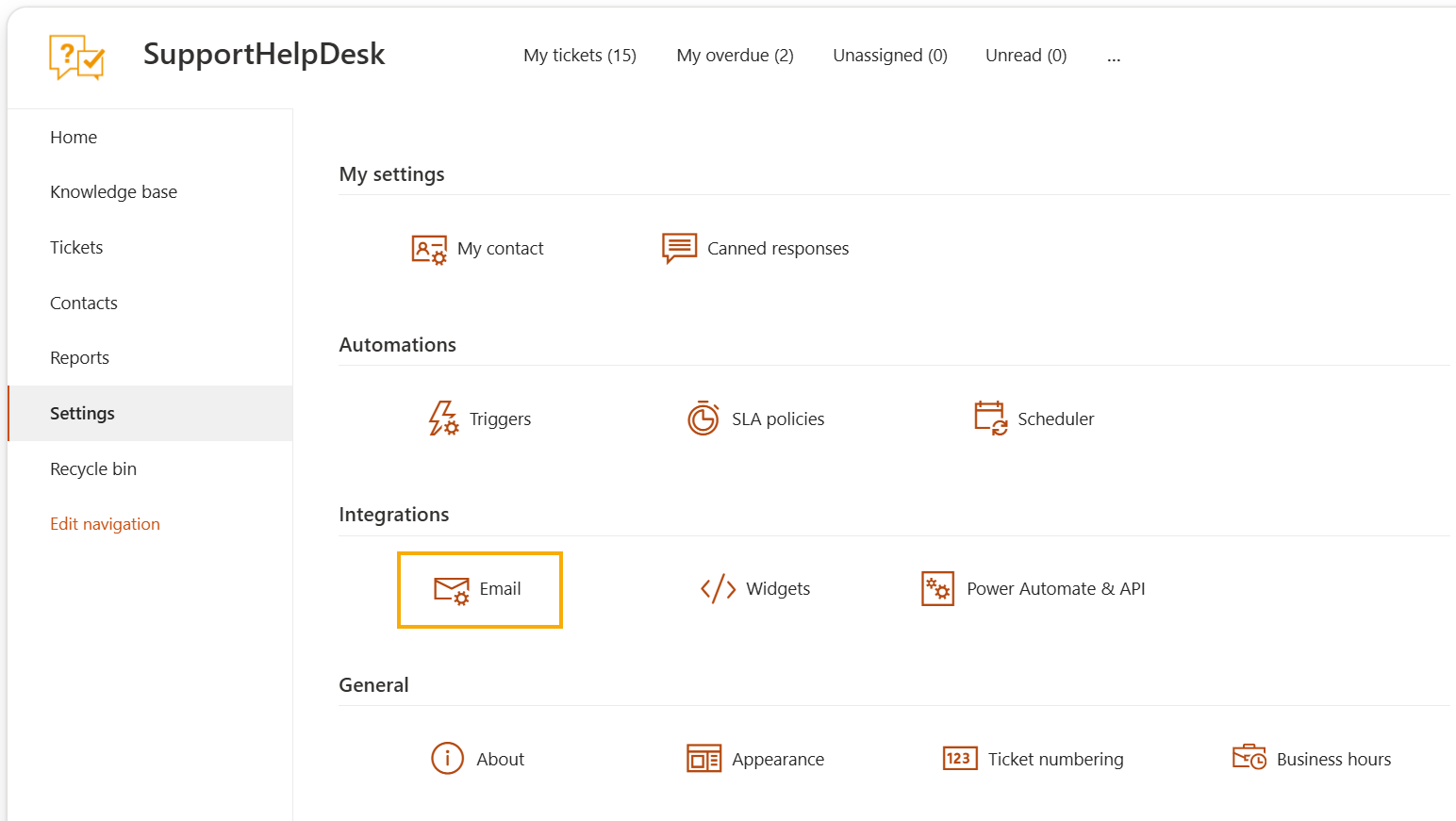
Navigate to Email settings section on the Settings page.
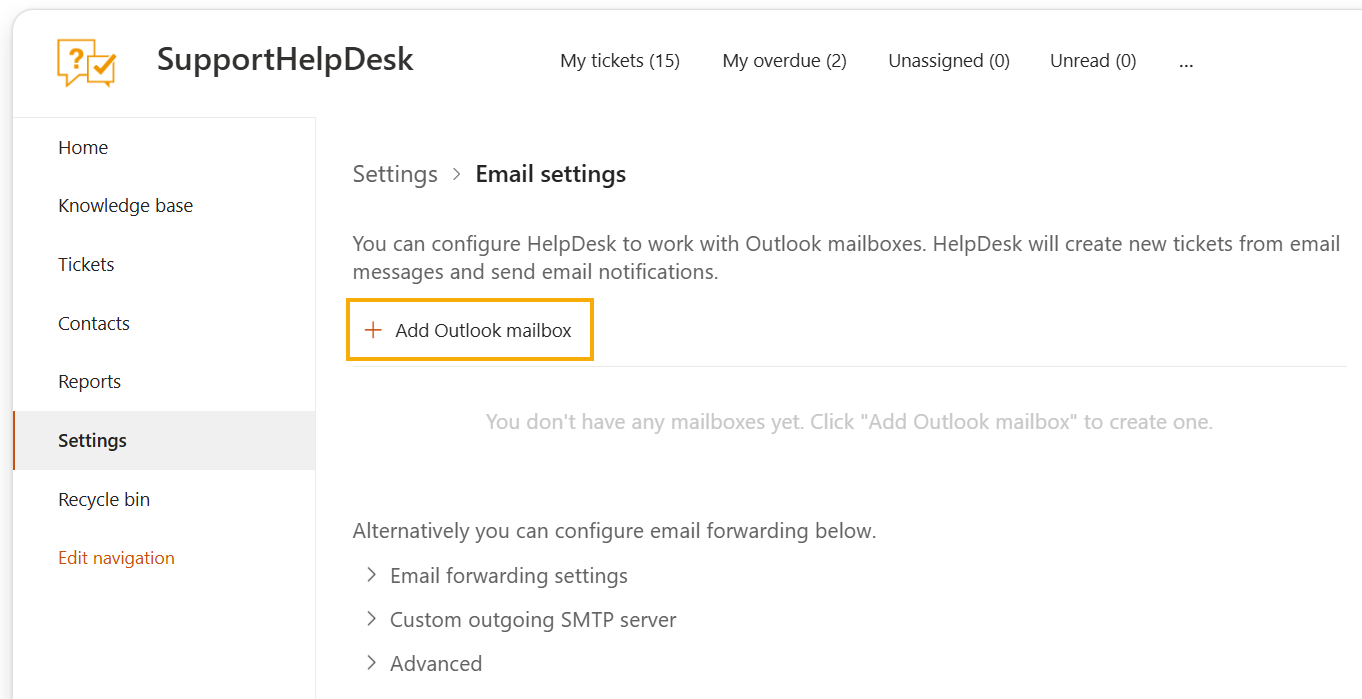
Click on Add Outlook mailbox button.
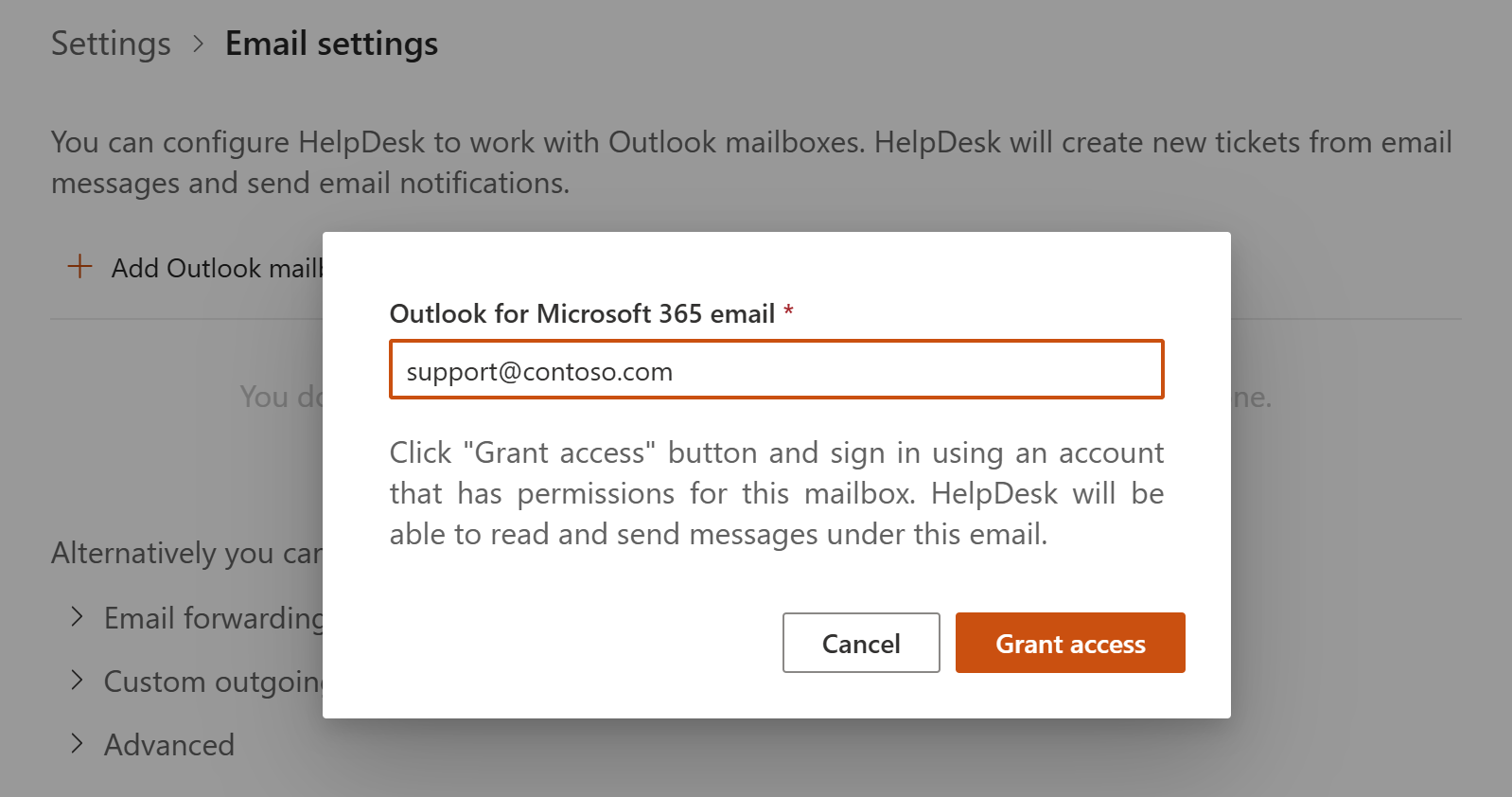
You’ll see a pop-up window. Enter the outlook email address.
Note
HelpDesk supports both individual and shared mailboxes. If you are adding a mailbox other than your own, first grant your account access to it.
Click Grant access button and sign in using account that you specified. This will allow HelpDesk to read and send email messages under this account.
You’ll be asked to grant permissions to the HelpDesk app to work with the mailbox. HelpDesk needs the permissions to correctly process the messages.
Multiple Outlook mailboxes
It is possible to add multiple mailboxes to the HelpDesk. Messages will be received from them and replies are sent from corresponding mailboxes. One of the added mailboxes is marked as default. If a ticket is created from the user interface, the message will be sent from the default HelpDesk mailbox.